CognitiveUX AI for Slack
CognitiveUX AI is an AI teammate for performance marketing teams. The Slack app reads messages in the Slack channels you choose, so your own AI agents and workflows can use them as context for your marketing analysis. It only reads — it does not post to Slack.
Last updated: September 30, 2026
What it does
Reads the channels you choose
Messages and thread replies in the channels an account manager picks become context for your own AI agents and workflows — nothing outside those channels is read.
Copies on a schedule
Messages are copied on the schedule each workspace sets, or when you click Sync now. There is no real-time processing, no slash commands and no direct messages.
Scoped per workspace
Each CognitiveUX AI workspace chooses its own channels, and stored copies are kept separate per account and workspace.
Who can use it
- Teams with a CognitiveUX AI account and a Slack workspace where they can approve apps.
- Only an account manager can connect Slack, choose channels or change these settings.
In the dashboard
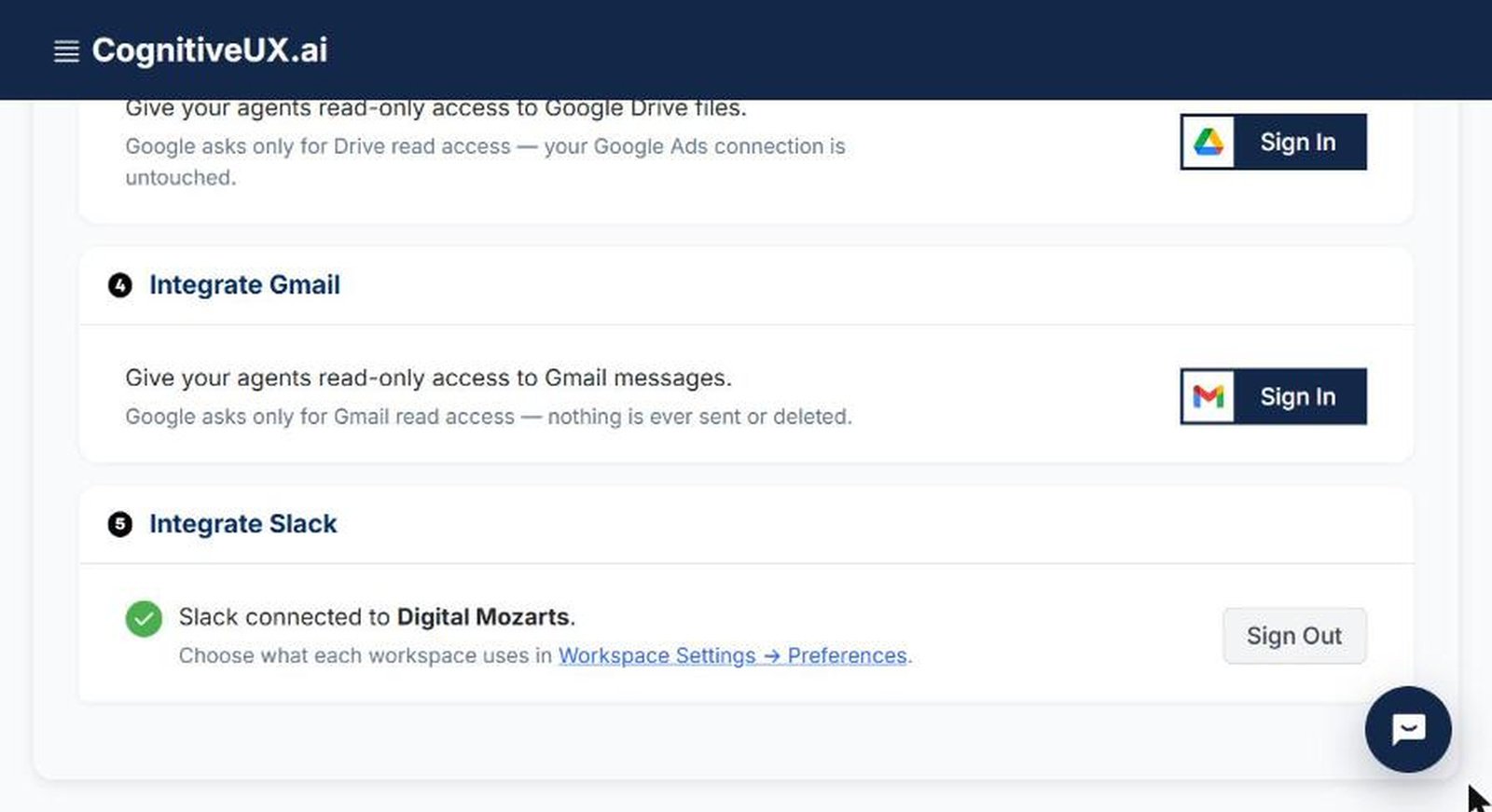
Connect Slack from Settings → Integrations
After you approve the app in Slack, the "5. Integrate Slack" tile shows which Slack workspace is connected, with a Sign Out button.
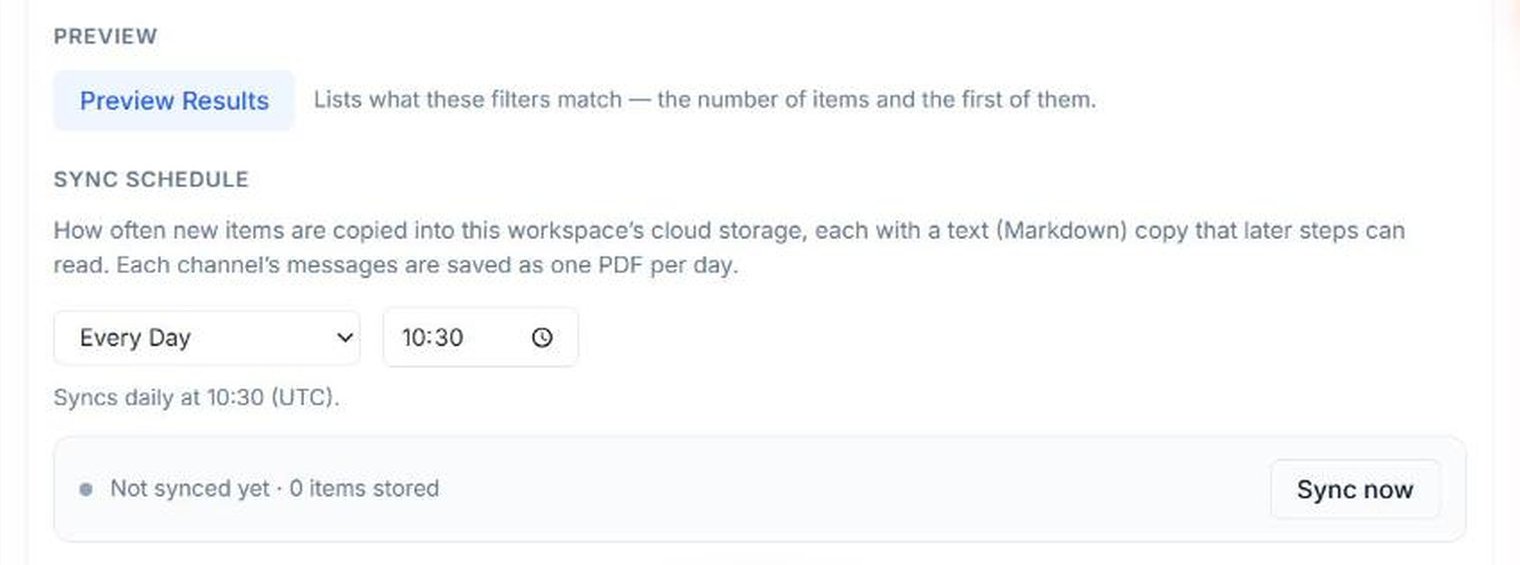
Preview, then sync on your schedule
Preview Results shows what your choices match. New messages are then copied on the workspace’s schedule, or on demand with Sync now — one PDF per channel per day, plus a text (Markdown) copy.
How to connect
There is no “Add to Slack” button on this page: installing starts inside the CognitiveUX AI dashboard, because the connection belongs to a signed-in account.
- 1
Sign in to CognitiveUX AI
Sign in to the CognitiveUX AI dashboard (shown as Almond) at poc.cognitiveux.ai. No account yet? Start a free trial first.
- 2
Connect Slack
Go to Settings → Integrations, find 5. Integrate Slack and click Sign In. Slack asks you to approve the app for your Slack workspace — approve it and you are sent back to the dashboard.
- 3
Invite the app to private channels
Private channels can be read only after the bot is invited. In Slack, type the following in each private channel you want it to read:
/invite @CognitiveUX AI - 4
Choose the channels for a workspace
In Workspace Settings → Preferences → Integrations → Slack, switch Slack on for the workspace, choose the channels to read, and set the options: include thread replies (on by default) and ignore bot messages (on by default). Nothing is read until Slack is switched on for the workspace and saved.
- 5
Preview and sync
Click Preview Results to see what your choices match, set the sync schedule, and click Sync now if you want the first copy straight away.
Permissions requested
The app is installed as a bot through Slack OAuth and asks for these five scopes. It has no slash commands, does not read direct messages and does not process events in real time.
- channels:readList public channels so an account manager can choose them.
- groups:readList private channels (once the bot is invited) so an account manager can choose them.
- channels:historyRead messages and thread replies in the chosen public channels only.
- groups:historyRead messages and thread replies in the chosen private channels only.
- users:readShow member display names instead of Slack user IDs.
Your data
What is read
- Channel names and IDs, so channels can be listed and chosen.
- Messages and thread replies in the chosen channels only.
- Member display names, shown instead of user IDs.
- The Slack workspace name and ID.
What is stored
- One PDF per channel per day, plus a text (Markdown) copy.
- Copies are kept in private cloud storage, separated per account and workspace. The bot token is stored server-side and never sent to the browser.
- Copies are deleted after the workspace’s retention period, counted from when each was copied: 90 days by default, configurable from 1 to 3650 days under Data Retention. Information already added to the workspace’s memory may be kept after the original copy is deleted.
- When one of your agents uses this content, it is sent to the AI model provider that runs the agent. It is not used to train generalized AI models.
How to disconnect and remove it
- To stop reading one workspace, switch Slack off in Workspace Settings → Preferences → Integrations → Slack.
- To remove the app, click Sign Out on 5. Integrate Slack in Settings → Integrations. This revokes the bot token with Slack and deletes it from our database.
- Signing out stops further reading. Copies already stored stay until the retention period ends or you ask us to delete them; deleting a workspace deletes its synced copies.
- To have stored copies deleted sooner, email [email protected] with the subject “Data Deletion Request”.
AI notice
CognitiveUX AI uses large language models, so responses can be inaccurate. Check important answers before acting on them.
Questions or a deletion request? Email [email protected] — no account needed. See also the other connected apps: Slack, Gmail, Google Drive.